INTRODUCTION C++

C++ is a general-purpose programming language. It was developed by Bjarne Stroustrup starting in 1979 at Bell Labs as an enhancement to the C language and originally named C with Classes. It was renamed C++ in 1983 [The name C++ (C plus plus) was named by Rick Mascitti in 1983]. C++ is an Object Oriented Programming language but not purely Object Oriented. C++ is one of the most popular programming languages and its application domains includes systems software, application software, device drivers, embedded software, high performance server and client applications, and entertainment software such as video games. 

In simple C++ is a statically typed, compiled, general purpose, case sensitive programming language that support procedural, object oriented and generic programming. 

C++ is regarded as a middle-level programming language as it comprises a combination of both high-level and low-level language features. C++ was developed as an enhancement to the C language.


Win + x+ Keyboard Shortcut


  1.  Win + Break  Display the System Properties Dialog box
  2.  Win +  Shift + M - Restore the Minimised Windows.
  3.  Win +  Ctrl +F - Search for Computers.
  4.  Win +  F1 - Display Windows Help.
  5.  Win +  Space Bar - Switch the input language.
  6.  Win +  Ctrl +  Space Bar - Change the previously selected input language. 
  7.  Win +  Enter - Open Narrator. 
  8.  Win +  Alt +  Enter - Open Windows Media Center.
  9.  Win +  Tab - Cycle through recently used Software.
  10.  Win +  Ctrl +  Tab - Cycle through recently used Software.
  11.  Win +  Ctrl + B - Switch to app that displayed a message in the notification area. 
  12.  Win +  Shift + Tab - Cycle through recently used software.
  13.  Win  Shift +  .  - Snaps the application to left.
  14.  Win +  Shift + V - Cycle through Notification reverse order.
  15.  Win +  Pause - Display the System Properties dialog box
  16.  Win +  Ctrl + F - Search for PC's, If you are on a network.
  17.  Win +  Shift + M - Restore minimised windows on the desktop.
  18.  Win + "Number" - Start the application pinned to the taskbar in the position indicated by the number. 
  19.  Win + Shift + "Number" - Start a new instance of the app pinned to the taskbar in the position indicated by the number.
  20.  Win + Win + "Number" - Switch to the last active window of the app pinned to the taskbar in the position indicated by the number 
  21.  Win + Alt + "Number" - Open the Jump List for the app pinned to the taskbar in the position indicated by the number.
  22.  Win + Ctrl + Shift + "Number" - Open a new instance of the app located at the given position on the taskbar as an administrator. 
  23.  Win + "Up Arrow" - Maximise the window.
  24.  Win + "Down Arrow" - Remove current app from screen or minimise the desktop window.
  25.  Win + "Left Arrow" - Maximise the app or desktop window to the left side of the screen.
  26.  Win + "Right Arrow" - Maximise the app or desktop window to the right side of the screen.
  27.  Win +  Home - Minimise all but active desktop window
  28.  Win +  Shift + "Up Arrow" - Stretch the desktop window to the top and bottom of the screen.
  29.  Win +  Shift + "Down Arrow" - Restore / minimise active desktop window vertically, maintaining width.
  30.  Win  Shift + "Left Arrow / Right Arrow" - Move an app or window in the desktop from one monitor to another.

WHAT IS STEPS RECORDER

Step Recorder is a combination key logger, screen capture and annotation tool for Windows. Windows 7 ship with a utility named PSR (Problem Steps Recorder) that records the steps you have taken on the computer automatically including mouse clicks. Its is used to quickly and easily document action made on a computer for troubleshooting purpose. You can use these recordings to speed up issues when you are dealing with tech support.

Problem Step Recorder can be used to automatically capture the steps performed by a user on a computer, including a text description of where they clicked and a picture of the screen during each click. This capture is then automatically saved to a file that can be used a support professional to help the user troubleshoot the issue or understand what steps were taken by the user.

Step Recorder is user for troubleshooting and assistant tool used to record actions taken by a user on a computer. Once recorded, the information can be send to whatever person or group is assisting in the troubleshooting. 

Step Recorder is a program that must be manually started and stopped by you. PSR doesn't run in the background and does not collect or send information to anyone automatically. 

Step Recorder is available in Windows 10, Windows 8, Windows 7 and Windows Server 2008.

STEPS:

  • Click Start à Run or use short cut key Win+R to open command prompt. 
  • Type PSR and press Enter.

  • Problem Step Recorder toolbar will appear.

  • To start the capture simply press Start Record” button.
  • Now whatever you do on your computer it will be recorded in snaps as well as text.
  • To stop recording simply press “Stop Record” button.
  • You will be prompted to save the resulting ZIP file. 
  • Write the name of the file and save it on the desktop or any location.

  • Now extract the compressed file by right click extract all option.
  •  A Problem.mh file will be there in the extracted folder.
  • Now open the file in Internet explorer.


By default Problem Steps Recorder will record only 25 screenshots. But thing can be changed to any number. Click on the small down-arrow next to the help icon, and then select settings.

In any case, PSR is more than just a screenshot tool. Besides automating the capturing of what's going on the screen, It will also highlight the user's mouse clicks, and most importantly, will provide a detailed textual metadata with a description of what the user is doing.

AVOID VOMITING DURING TRAVELLING

What is Vomiting?

In simple all our body parts work together to send the waste matter inside our stomach through the mouth is called Vomiting. The term vomiting describes the forceful expulsion of the content of the stomach via the mouth, some times through nose. Vomiting involves the forceful contraction of stomach muscles. 

Causes of Vomiting

  • Motion sickness or seasickness.
  • Early stage of pregnancy.
  • Intense pain.
  • Emotional stress, such as fear.
  • Food poisoning.
  • Over eating.
  • A reaction to certain smells.
  • Heart attack.
  • Brain tumor.
  • Some form of cancer.
  • Excessive amount of alcohol.
  • Headache.
  • Travelling.
Why vomit during travelling 

Many people suffer with motion sickness which is vomiting while travelling. Motion sickness or Travel sickness is very common and can make you feel sick or be vomit. There are various reasons for vomiting during travelling.

Sense of smell, people have tendency to vomit due to react of some smells like diesel smell, bad smells etc.

When feeling motion but not seeing it, the inner ear transmit to the brain that it senses motion, but the eyes tell the brain that everything is still. As a result of the discordance, the brain will come to the conclusion that the individual is hallucinating and further conclude that the brain hallucination is due to poison ingestion. The brain responds by including, vomiting to clear the supposed toxin.

Tips for avoid vomiting
  1. Never start a journey in empty stomach. But don't eat stomach full.
  2. Drink water, don't drink stomach 
  3. Avoid food that are more oily and spicy.
  4. Sleep well on night, before starting the journey.
  5. Do not carry anything with harsh smell. 
  6. Bring a lemon, and smell it frequently. 
  7. If you have headache during travel, take headache medicine immediately.
  8. While travelling take rest for few mints, and walk some steps.
  9. Take deep breath frequently. Breath the fresh air
  10. Avoid sprays or perfumes, it will give tendency to vomit to people they travelling with you.
  11. If you are travelling in a car, try to sit at the front seat. If you are travelling in bus, try to sit at the middle seat. If you are travelling in air try to sit over the wing of the plain.
  12. Avoid reading during the journey, also avoid watching film.
  13. Close your eyes and try to sleep
  14. Don't sit opposite direction of travelling.
  15. If all above tips not helping, consult a physician and take medicine before next journey.

AVOIDE RADIATION


1- Use branded handset, avoid China phones.
2- Always choose better coverage, low energy network (eg; Airtel).
3- Avoid dual Sim phones, turn of one Sim.
4- If you possible, use headset.
5- When you use internet try to keep phone away from body.
6- Don't kept mobile near in your head, when you are sleeping.
7- Use best battery & avoid net or call in low battery.
8- Use left ear to hear calls.
9- If possible try to keep mobile away from body.
10- Avoid long night talks.

UTILISE FULL RAM

WHAT IS RAM (Random-Access Memory)
Random-access memory (RAM) is a type of computer data storage. A RAM device makes it possible to access data in random order, which makes it very fast to find a specific piece of information. Certain other types of storage are not random-access. For example, a hard disk drive and a CD will read and write data in a predetermined order. The mechanical design of these devices prescribes that data access is consecutive. This means that the time it takes to find a specific piece of information can vary greatly depending on where it is located on the disk.

RAM devices are used in computer systems as the main memory. RAM is considered volatile memory, which means that the stored information is lost when there is no power. So, RAM is used by the central processing unit (CPU) when a computer is running to store information that needs to be used very quickly, but it does not store any information permanently.

To increase your system speed, you must consider the CPU, RAM, Operating System etc. If RAM is full the software should be miss behave. This time I found that the system doesn't use full RAM. I  think how to use full RAM of system that we installed in our computer. Finally I found this trick how to use full RAM of computer, to use full RAM just follow these steps.... 

1- Go to Start - Run or just click short cut key Win+R.
2- Type "msconfig" without quote.
3- Now new window 'System Configuration' will open.
4- Click Advanced options...
5- In BOOT Advanced Options, tick check box Maximum Memory : 
6- Finally apply it and restart your system.


Share it with friends if you helpful this tip.


ADD PIC TO SONG USING WINAMP


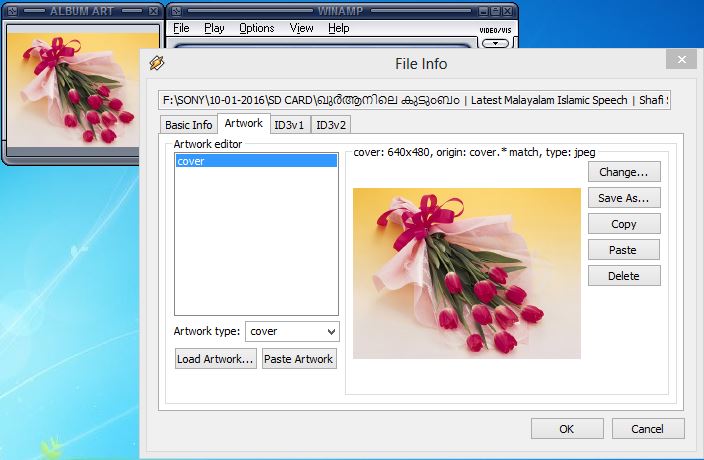
Friends, are you like to add your Photos in to mp3 Songs?, Here I am describing a small trick to add Photos to Mp3 songs using Winamp mp3 player. Many software like MP3 TAG are available. But using a player is simple. You can add photos while playing a song using Winamp mp3 player.

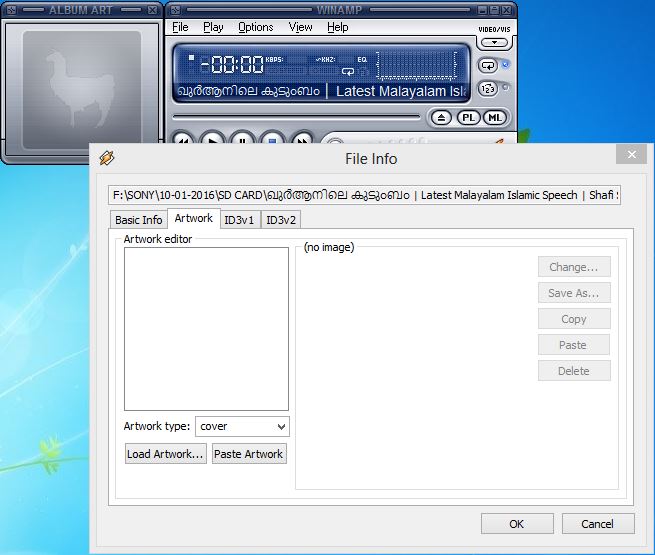
Before adding your photos we should check, in song already have photos. To check, open Album Art, to open, go to menu bar - View - Album Art, or just click 'Alt + A'. 
Here have Album Art, so we want to delete it first. To delete :-
Press Alt + A, Select Artwork tab and delete current Picture.


After Deleting current picture, to add photos using Winamp just follow these steps.

1- Open Winamp. (If Winamp not in system please download it from here, http://www.winamp.com/)
2- Play song which you like to add your photos.


3- Press Alt + 3, after pressing this short cut key we can see File info.
4- Select Artwork tab
5- Click on Load Artwork...


6- Select your photo like to add to song. and apply it by clicking OK button.


7- Finally we add your own photos to mp3 using Winamp........


Enjoy..............! If like this tip, Share with your friends........

INTRODUCION TO JAVA

        Java is an Object Oriented Programming language created by James Gosling from Sun Microsystems (Sun) in 1991. Java is simple object-oriented, distributed, interpreted, robust, secure, architecture neutral, portable, multithreaded, high-performance and dynamic language. Java is a platform independent programming language. The syntax is similar to C++. Write a Java program once then it will run on multiple operating systems. The first Java version is released in 1995.

        Like any other programming languages the Java programming language has it's own structure, syntax, and programming paradigm. The Java language's programming paradigm is based on the concept of OOP, which the language's features support. The Java language is a C language derivative, so syntax rules look much like C's. For example, code blocks are modularized into methods and delimited by braces ({ and }), and the variables are declared before they are used. Structurally, the Java language start with packages. A package is the Java languages namespace mechanism. Within packages are classes, and within classes are methods, variables, constants and more.

DEFINITION
        Java is a general-purpose computer programming language that is concurrent, class-based, object oriented and specifically designed to have as few implementation dependencies as possible. It is indented to let application developers 'write once, run anywhere'. Meaning that compiled Java code can run all platforms that support Java without the need for recompilation. Java applications are typically compiled to byte code that can run on any Java Virtual Machine (JVM) regardless of computer architecture.

HOW JAVA DIFFER FROM C++?
C++
Java
Compile to machine code
Compiled to byte code.
Supports pointer
Does not supports pointers
Global variables are allowed.
No global variable concept
Multiple inheritances-A class can have two or more super classes.
Multiple inheritances are attained in directly with the help of interface concept.
Supports operator overloading.
Does not support operator overloading.
ASCII- character set.
Unicode – character set


JDK EDITIONS
1- Java Standard Edition (J2SE) : J2SE can be used to develop client-side standalone applications or applets. It contains JDK and API for Windows applications. It is core part of Java.

2- Java Enterprise Edition (J2EE) : J2EE can be used to develop server-side applications such as Java Servlets and Java Server Pages. It contains API that are used for building large web centric distributed applications.

3- Java Micro Edition (J2ME) : J2ME can be used to develop applications for mobile devices such as cell phones and portable devices.

JDK (Java Development Kit)

1- javac : This is a Java compiler used to convert the source code (.java file) to byte code (.class file).
2- java : It is an interpreter used to execute the byte code.
3- appletviewer : This is used to run applets without browsers being invoked.
4- javap : This tool is used to disassemble the Java byte code to display the member variables and the methods.
5- javah : This tool creates the C-header file necessary to extend your Java code with the C language.
6- javadoc : This tool is used to create documentation (comment entries) for the given Java code.
7- jdb : Java debugger is used to debug local and remote files.
8- jar : This tool is used to pack the collection of Java classes into single archive file.

HISTORY OF JAVA


       In simple Java is an Object-oriented programming language created by Sun Microsystem in 1991. Java programming language is written by the Green Team lead by James Gosling along with the two person 'Mike Sheridan' and 'Patrick Naughton', while they were working at Sun Microsystems. Initially it was named oak Programming Language. The first version of Java aimed at programming home appliances which are controlled by a wide variety of computer processors. It was the advanced concept at that time. Currently Java is used in internet programming, games, mobile etc.

                                                 JAMES GOSLING
        The target of Java is to write a program once and then run this program in multiple operating system. The first publicly available version of Java (Java 1.0) was released in 1995. Sun Microsytem was acquired by the Oracle Corporation in 2010. 

        James Gosling was firstly named as "GREENTALK" and file extension was  .gt. After that it was called by oak. In 1995 Oak was renamed as Java. Java was started as a project called "Oak" by James Gosling in June 1991. Gosling's goals were to implement a virtual machine and a language that had a familiar to C, like notation but with greater uniformity and simplicity than C and C++. Java 1.0 made the promise of " Write once, Run anywhere".

Primary goals in the creation of the Java languages are :
1- It should use the object-oriented programming methodology.
2- It should allow the same program to be execute on multiple operating system.
3- It should be designed to execute code from remote sources securely.
4- It should be easy to use.
5- It should contain built-in support for using computer network.

        The Java syntax is similar to C++. Java is case sensitive. For example variable called 'Value' and 'value' are treated as different variables. 

JAVA VERSIONS
        The Java languages has undergone several changes since JDK 1.0. The Java Development Kit (JDK) is a software development environment used for developing Java applications and Applets. It include Java Runtime Environment (JRE), an interpreter/loader (Java), a compiler (Javac), an archiver (jar), a document generator (javadoc) and other tools in Java development.
        The Java languages has several changes since JDK 1.0 as well as numerous addition of classes and packages to the standard library. Versions of Java and released year are follows.
  • JDK Beta                -         1995
  • JDK 1.0                  -         1996
  • JDK 1.1                  -         1997
  • J2SE 1.2                 -         1998
  • J2SE 1.3                 -         2000
  • J2SE 1.4                 -         2002
  • J2SE 5.0                 -         2004
  • Java SE 6                -         2006
  • Java SE 7                -         2011
  • Java SE 8                -         2014
JDK EDITIONS
  • Java Standard Edition (J2SE) : J2SE can be used to develop client-side standalone applications or applets. It contains JDK and API for Windows applications. It is core part of Java.
  • Java Enterprise Edition (J2EE) : J2EE can be used to develop server-side applications such as Java Servlets and Java Server Pages. It contains API that are used for building large web centric distributed applications.
  • Java Micro Edition (J2ME) : J2ME can be used to develop applications for mobile devices such as cell phones and portable devices.

INCREASE iPHONE BATTERY LIFE


Every smart phone users facing lesser battery backup. Here I describe tricks to get more battery life for iPhone users. When iPhone’s battery is too low, you can use this trick by closing or disabling some functions of iPhone. These and the steps to closing them as follows.

1- Switch off the Wi-Fi
     Go Settings à Wi-Fi à off
2- Switch off Bluetooth
     Settings à Bluetooth à off
3- Deactivate 3G network mode
     Settings à General à Cellular à Enable 3G à off
4- Deactivate LTE network mode
    Settings à General à Cellular à Enable LTE à off
5- Deactivate Location Services
    Settings à Privacy à Location Services à off
6- Disable auto Brightness
    Settings à Brightness & Wallpaper à Auto Brightness à off
7- Disable Vibrate
     Settings à Sound à Vibrate on Ring & Silent à off
8- Disable fetching new Date
     Settings à Mail, Contact, Calendar à Fetch Date à off
9- Disable background Activity
     Settings à General à Background App Refresh à off

Other than disabling the services like Wi-Fi, Bluetooth, Vibrate etc. we should know the some other features of iPhone and battery general factors. Here describing one by one ……

TEMPERATURE
iPhone is designed to perform a wide range of temperature 16o to 22o C (62o to 72o F). Temperature has a big impact on device’s battery. If the temperature is higher than 35o C (95o F) the battery can be damaged permanently. That means the battery’s  backup capacity will reduce. Charging the device in high temperature can damage it further. When device is using in cold environment the battery capacity is going to reduce faster. Note, once the battery’s temperature is return to it’s normal operating range, it’s perform will return to normal. If you are using cases for iPhone you should notice the temperature when charging. If it generate excess heat, which can be effect the battery capacity. So if temperature is high when charging with the extra cases, you should remove the case and charge the phone.

ENABLE LOW POWER MODE
Low Power Mode is easy way to extend battery life of iPhone. Low Power Mode introduced with iOS 9. If iPhone’s battery level goes down 20% or less and turn on low Power Mode with one tap. You can enable it by:
            Settings à Battery à Low Power Mode
Low Power Mode reduce brightness, optimize device performance, Apps like Mail will not be download content in background, and features like AirDrop, Continuity and iCloud syn will be disabled. You can use functions like making and receiving phone calls, messages, accessing internet and more. When your phone charged again the Low Power Mode automatically switch off and your iPhone will perform normally.

DON’T PLUGGED IN ALL TIME
Leaving your devices plugged in at 100% is also harmful of battery life. Overcharging is not good for battery. Continues charging will damage the battery.

LOW SIGNAL OR NO NETWORK COVERAGE
If you are in a poor mobile coverage area or no network coverage area your iOS devices will searching for a better signal, this will affected your battery life. By turning in Airplane mode you can optimize your battery life. When activate Airplane mode you cannot make or receive calls.

BACKLIGHT
Setting the backlight to “always on” will be reduce battery life of iPhone’s. Use the backlight only when necessary.

UPGRADE WITH LATEST VERSION
For optimize battery life always make sure your device’s iOS is the latest version. If you’re connected to internet, will be automatically checks for software updates every week, but you still control when updated are installed. To confirm that you’re using the latest iOs, go to the Apple menu and choose Software Update.

STOP QUITTING APPS
To increase the battery life quit the apps we are not using. To quit an app, double tap the Home Button and swipe up on the apps you want to close.


MORE TRICKS WILL COME LATER, KEEP VISITING.


Blog Archive